
Two different things get called a Canva seating chart. One is a poster: a Canva seating chart template filled in with your tables and printed for the entrance. Canva does that well, and nothing here replaces it. The other is a chart on your Canva website where a guest searches for their own name. A Canva design cannot search, so that second chart is the one this guide builds.
The two work together. The widget's QR code downloads as an SVG, which Canva accepts as an upload on any plan, so it goes straight onto the poster you already designed. When someone changes table in the last week, upload the corrected guest list in Fugte and publish again. The Canva website and the QR code both show the new seat within about a minute, and nothing in Canva has to be reopened or republished. The printed poster is the one copy that does not follow the edit, so print it last.
Canva websites show embeds that sit in the page, never ones that float over it, so a floating Find My Table button, a bar pinned to the screen, or a popup that covers the page will not appear on a Canva site, from any provider. This widget sits in the page, and its own Find Your Seat popup opens inside its box, so it works on Canva the way it works everywhere else.
Why Fugte
A poster in Canva, a lookup on the site.
The poster is Canva's job
For the board at the entrance, or a PDF for the venue and the caterer, a Canva seating chart template is the right tool. Fill it in, download it, and print it.
Every change is a second draft
Two guests cancel and a plus-one appears. On the poster, that means finding each name among the text boxes, retyping, lining the rows back up, downloading again, and reprinting, and every copy already printed or emailed stays wrong.
The lookup follows the guest list
Fix the spreadsheet, upload it in Fugte, and publish again. Within about a minute the Canva website and the QR code on the sign both show the new seats, and nothing in Canva is reopened.
Watch it done
How to Embed HTML to Canva
Shown with a puzzle widget, in about a minute and a half. The steps are the same for the Seating Chart, and they are written out below.
Step by step
Embed the Seating Chart in your Canva website.
Checked in Canva on : A Canva website has nowhere to paste HTML or embed code. Import HTML turns a file into a single Code block that Canva's design tools do not work inside. The Embed app takes a link instead.
- 01
Add your guest list in Fugte
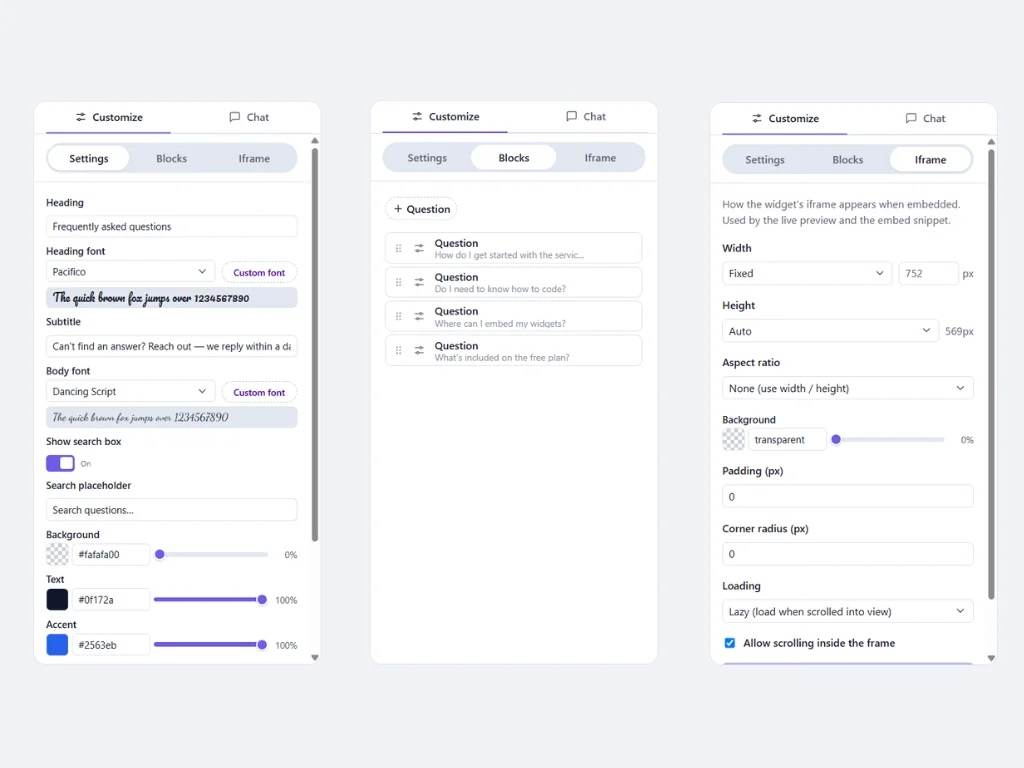
Open the Seating Chart starter and use Guest list to upload an .xlsx, .ods, or .csv file, or paste a Google Sheet link after setting the sheet's General access to Anyone with the link. The first row names the columns: Name, or First Name and Last Name, then Table, Seat, and Notes if you use them.
- 02
Choose the photo and what opens in a popup
Add a photo of the couple or the venue, and a second, taller crop under Mobile photo if the first one is wide. Popup mode decides what waits behind a button: the search box, the photo, or neither. Leave the photo out and the search box sits on the page by itself.
- 03
Publish and copy the Embed link
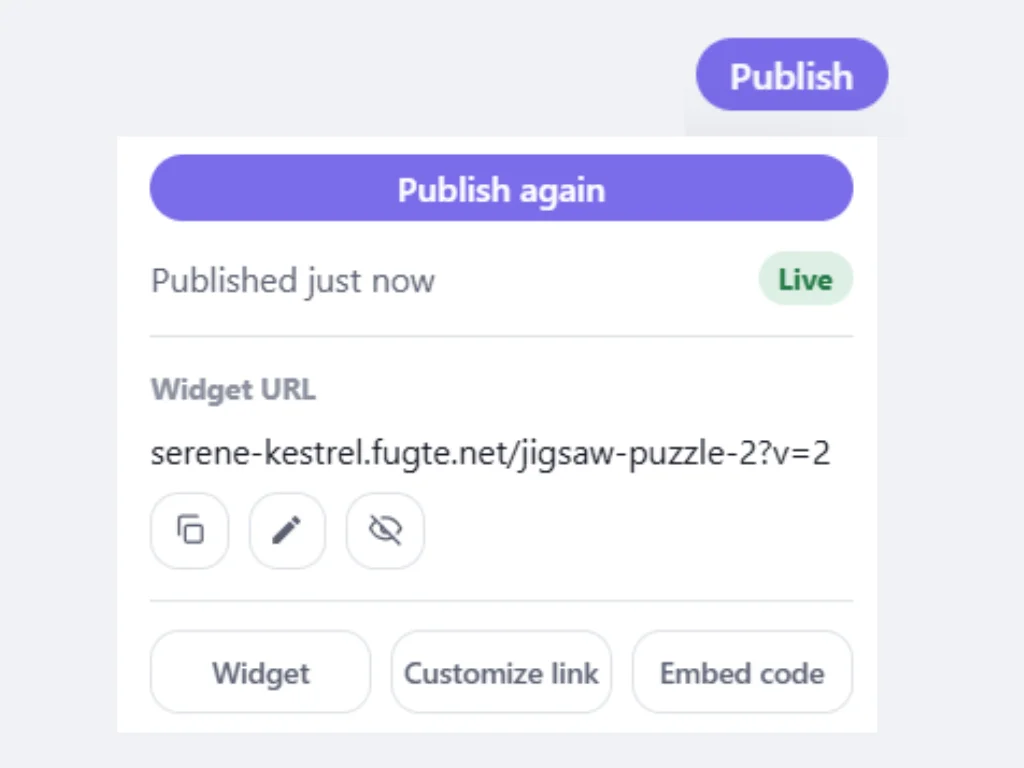
Publish the widget, open Publish & share, and copy the Embed link. Canva takes that link. It does not take HTML embed code on any plan.
- 04
Add an Embed element in Canva
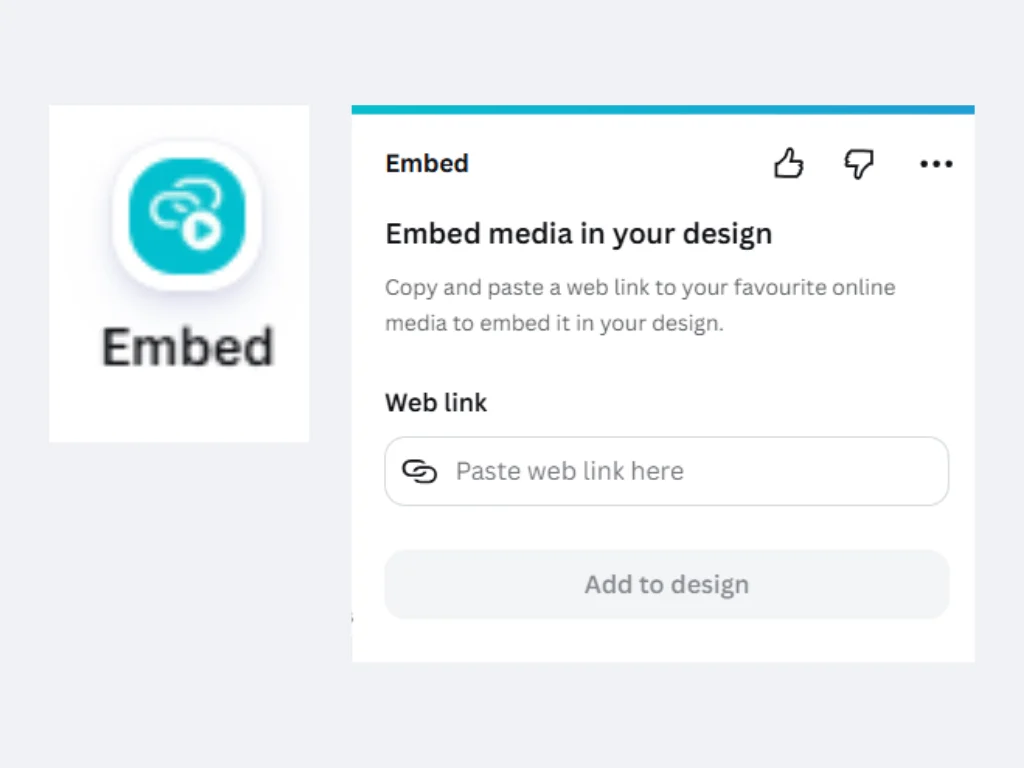
In your Canva website design, open Apps in the left sidebar, search for Embed, and open it. Paste the link and choose Add to design. Drag the box large enough for the photo rather than only the search card, because the popup opens inside that box.
- 05
Publish the site and search from a phone
Publish the Canva site, open it on your phone, and type a guest's name. When the embed is under 600 pixels wide the widget switches to the mobile photo and column count, so look at it on a phone as well as a laptop.
- 06
Put the QR code on your Canva poster
Back in Publish & share, open QR code and choose Download SVG. Upload the file to Canva and place it on the seating chart poster, the welcome sign, or the table cards. Guests who scan it get the same search as the website.
- 07
When the seating changes
Fix the rows in your spreadsheet, upload it again under Guest list, and publish again. Within about a minute the Canva site and the QR code show the new seats, with nothing to change in Canva. A linked Google Sheet catches up on its own: within 15 minutes on Basic and Creator, and up to a day on free.
Another option: the Fugte app in Canva (open Apps and search for Fugte) also lists the Seating Chart on its Starters tab, and adds it to the page as the same kind of embed. See the Fugte app in Canva.
Good to know
Canva specifics worth planning around.
Canva renders only static, in-page embeds: floating buttons, sticky bars, and popups will not work on Canva sites.
There is no site-wide option: a widget you want on several pages must be embedded on each page individually.
The Embed element is available on free Canva accounts.
The link stays stable, so later edits made in the widget editor appear on the Canva page automatically, no need to reopen the design.
Why Canva takes a link and not code, and what to do when an embed is blank or cut off: How to Add HTML to Canva.
This widget
What the Seating Chart needs from the embed.
The section above applies to anything you put on a Canva website. This part is specific to the Seating Chart.
Ideas
Where the Seating Chart fits.
Wedding receptions
Guests type their name on your wedding or event website and see their table and seat.
Welcome sign QR codes
Guests type their name on your wedding or event website and see their table and seat.
Planners and venues
Guests type their name on your wedding or event website and see their table and seat.
FAQ
Common questions.
Can I make a seating chart in Canva?
Yes, as a design. Canva has seating chart templates you fill in and download as a PDF or an image to print. A design cannot search, though. For a chart where guests look up their own name, build it in Fugte from your guest list and put it on your Canva website with the Embed element, then add its QR code to the Canva poster so guests at the entrance can reach the same search.
How do I add a seating chart to my Canva wedding website?
Build the chart in Fugte from your guest list, publish it, and copy the Embed link from Publish & share. In Canva, open your website design, add Embed from Apps, paste the link, and drag the box large enough for the photo. Publish the Canva site, then search for a guest on your phone to check it.
Can I put a QR code for the seating chart on my Canva sign?
Yes. In Fugte, Publish & share has a QR code you can download as an SVG, and Canva accepts SVG uploads, so it goes onto your poster, welcome sign, or table cards like any image. Canva's own QR code tool works too if you paste the widget's link into it. A static code is enough: the link never changes, so the code keeps opening your latest seating after you move someone. If the widget has a passcode, print the passcode next to the code.
Can I use my Canva seating chart design as the photo?
You can upload it, but it will not line up. The widget cuts the photo into an even grid with one tile per guest, in the order of your file, so the tables drawn in your design end up split across tiles that have nothing to do with them. A photo of the couple or the venue works better, and the table and seat always come from the guest list, never from the picture.
Does the Find Your Seat popup work on a Canva website?
Yes. Canva cannot show popups that cover the whole page, and this one does not try to: it opens inside the widget's own embed box. That is why the box needs room for the photo. If the box has to stay small, leave the photo out, and the search box sits on the page with no popup at all.
What happens on my Canva site when I move a guest?
Upload the corrected guest list in Fugte and publish again. Within about a minute the Canva website shows the new table, and you change nothing in Canva. A linked Google Sheet updates on its own, but on the free plan it is read again only once a day, so on free, upload a file for a last-minute swap. On Basic and Creator the sheet is read every 15 minutes.
Can I paste HTML or iframe code into Canva instead?
No. Canva websites do not support raw HTML, JavaScript, or iframe embeds on any plan. Hosting the widget elsewhere and embedding it by link is the supported route.
Is there a Fugte app in Canva?
Yes, as another way to add a widget. In the Canva editor, open Apps and search for Fugte. The app adds ready-made starters, widgets from your Fugte account, and code you paste in, each as the same kind of embed a pasted link makes.
Some guides say to use an HTML block in Canva. Where is it?
Canva websites do not have one. Steps that mention an HTML or code block, a code module, or an HTML button in the text editor describe other website builders. In Canva, the element that shows outside content is Embed, and it takes a link.
What about Canva's Import HTML option?
It is for reworking a page inside Canva: the file comes in as a single Code block that Canva's design tools do not work inside. To put the Seating Chart on your site, paste its link into the Embed app.
Will the Seating Chart stay interactive after the Canva site is published?
Yes. The Seating Chart loads live on the published site, on desktop and mobile, and visitors can interact with it without any account.
Does this need a paid Canva plan?
No. Canva's Embed element works on free accounts, and Fugte has a free plan, so you can test the full workflow at no cost.
More guides
Same widget, other platforms.
Add a Seating Chart to a Notion page
Add a Seating Chart to any Notion page or Notion Site with the /embed block. Hosted, interactive, works on free Notion plans, no code.
Add a Seating Chart to a Shopify store
Add a Seating Chart to your Shopify store without installing an app or editing theme code: paste one hosted embed into a Custom Liquid section or page.
Add a Seating Chart to a WordPress site
Add a Seating Chart to WordPress with a Custom HTML block, no plugin required. Works with the block editor, classic editor, and page builders like Elementor.
Add a Seating Chart to a Webflow site
Add a Seating Chart to a Webflow site with the Embed element: one hosted snippet, editable later without republishing the site.
Related widgets
More utility widgets for Canva.
Add a Custom Iframe Embed to a Canva website
Showcase your iframes!
Add a Message in the Bottle to a Canva website
A calming interactive gratitude bottle where visitors can write small notes, drop them into the bottle, and reopen them
Add a Music Player to a Canva website
Your music, your style, regular, pixel, minimal, or invisible for layering.
Try it
Put a Seating Chart on your Canva website today.
Start free, customize the Seating Chart without code, and embed it with one link. Free widgets show a small Fugte badge, which you can remove from this one for $9.99 once when you publish, with no subscription.