
Where the RSVP goes decides how it works. On a Canva website, the form sits on the page and guests fill it in there. On a Canva invitation that is printed, saved as a PDF, or posted as an image, a form cannot work at all, because a finished design cannot take input. The invitation carries a link or a QR code instead, and that opens the same form. This guide covers both.
Canva also has its own Forms element, which works on Canva websites and sends replies to Canva Sheets. If a plain form inside your design covers the event, that is the simpler route. The Fugte form is worth it when you want the party-size question to disappear for guests who say No, an email as each reply arrives, the list of who is coming shown on the form, or the same form on a page outside Canva. Editing works differently too: a Canva website has to be published again before any edit goes live, while an edit you publish in Fugte reaches the Canva site within about a minute.
Canva websites show embeds that sit in the page, not ones that float over it, so floating buttons, sticky bars, and popups do not work there. This form sits in the page and is unaffected. If you tried a popup or a floating RSVP button on a Canva site and it never appeared, that limit is the reason.
Why Fugte
Canva Forms, an invitation, and a hosted RSVP form.
Canva Forms keeps it all in Canva
Canva's own Forms element works on Canva websites and sends replies to Canva Sheets. For a plain form inside the design, it is the simpler route.
An invitation needs a link
A printed or downloaded invitation cannot take a reply. It carries a link or a QR code that opens a form, and this form has both, so replies from the invitation and the website land in one list.
Changes reach the site without a republish
An edit to a Canva website goes live when you publish the site again. An edit published in Fugte reaches the Canva site within about a minute, which matters when the venue, the time, or the deadline moves.
Watch it done
A Canva RSVP Form That Shows Who Is Coming
The full walkthrough in about two minutes, then the written steps below.
Step by step
Embed the RSVP Form in your Canva website.
Checked in Canva on : A Canva website has nowhere to paste HTML or embed code. Import HTML turns a file into a single Code block that Canva's design tools do not work inside. The Embed app takes a link instead.
- 01
Set up the form in Fugte
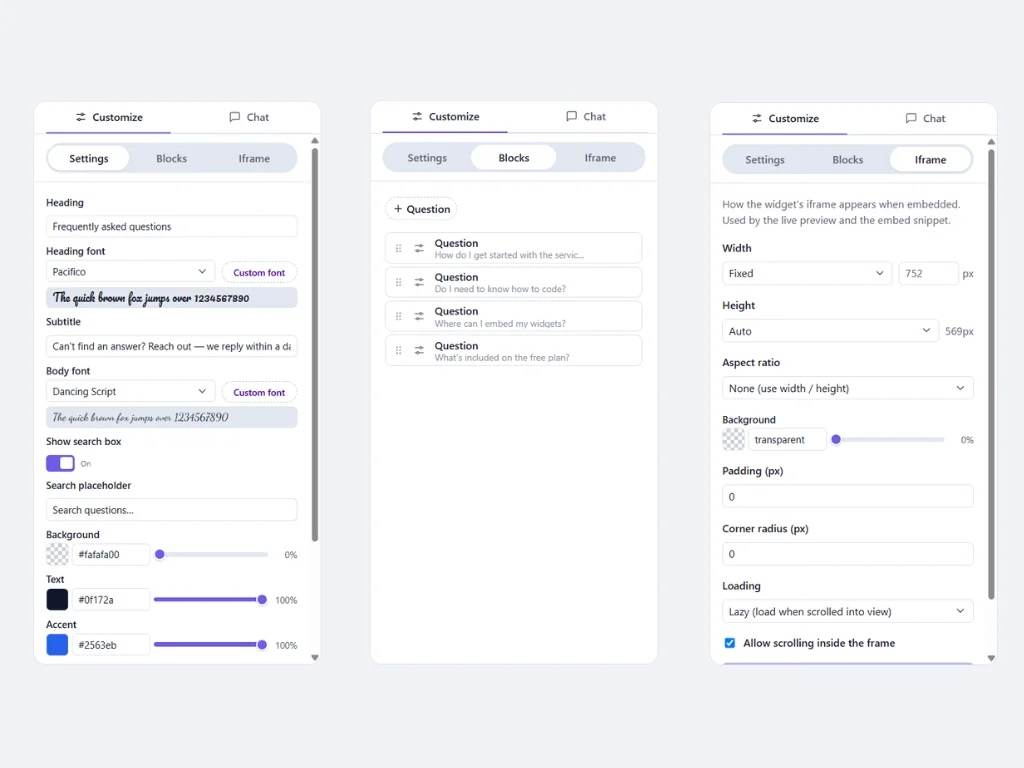
Open the RSVP Form starter. Write the heading and subheading, decide whether to ask for party size and a note, and add a photo above the form, beside it, or behind it. The name and yes-or-no questions are always there.
- 02
Publish and copy the Embed link
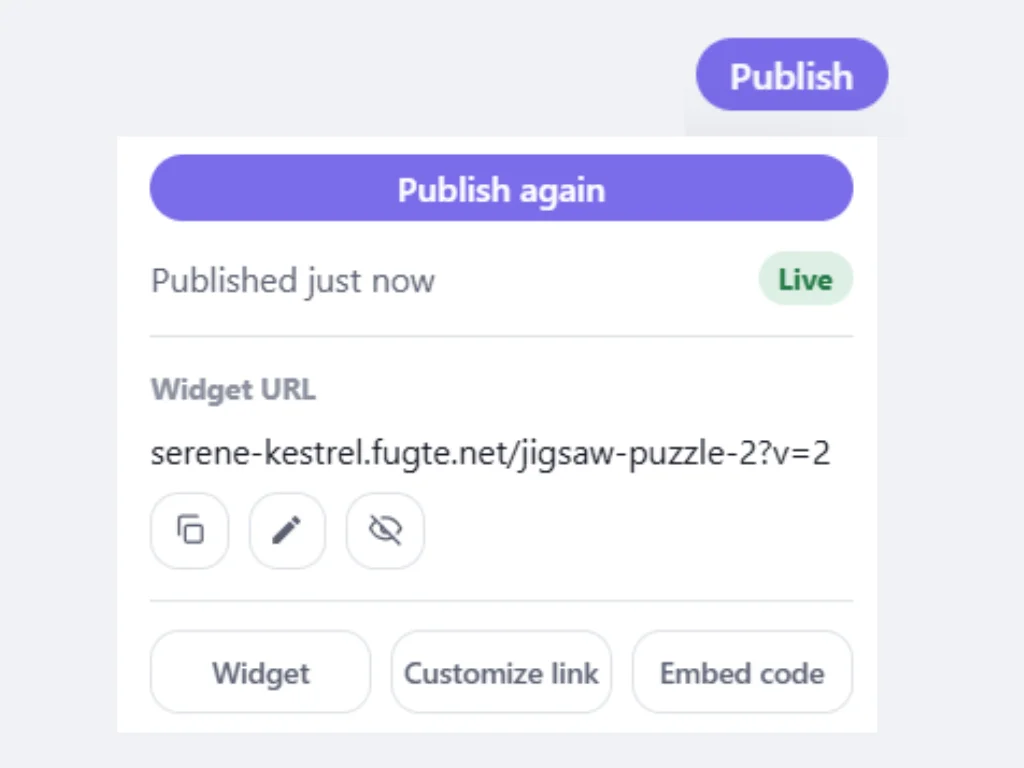
Publish the widget, open Publish & share, and copy the Embed link. Canva takes that link. It does not take HTML embed code on any plan.
- 03
Add an Embed element in Canva
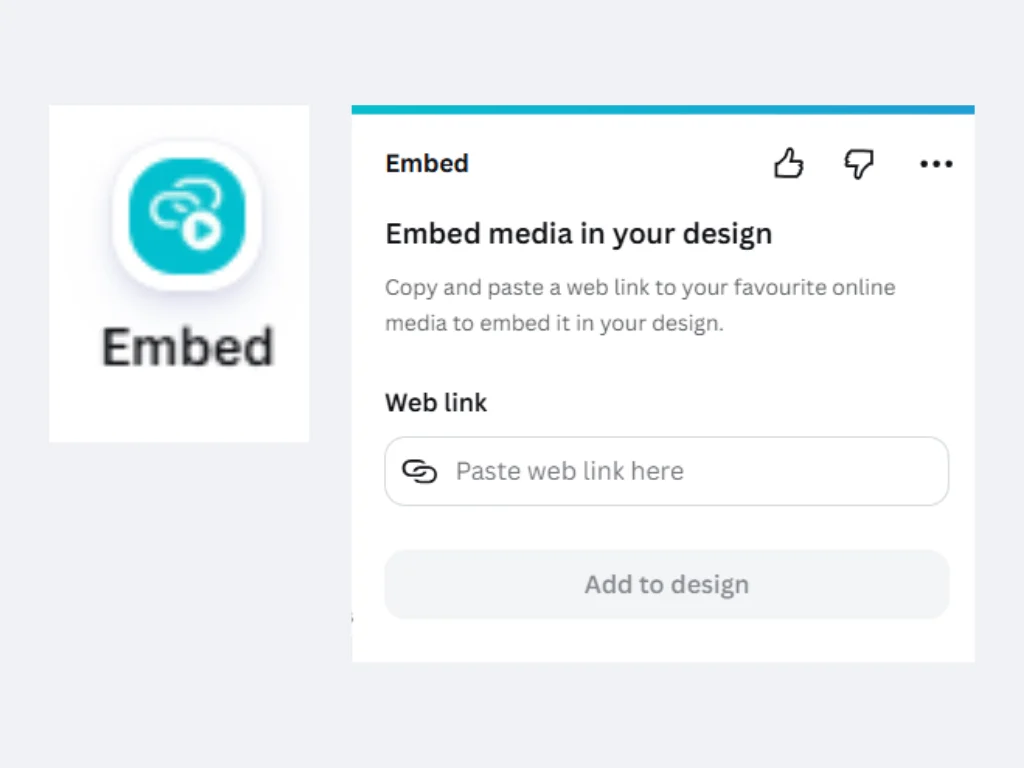
In your Canva website design, open Apps in the left sidebar, search for Embed, and open it. Paste the link and choose Add to design. Drag the box tall enough for the form as it first loads, which is its tallest state. For a narrow box, choose Top as the photo placement, because a side photo stacks above the form once the box is under about 520 pixels wide.
- 04
Publish the site and send a test reply
Publish the Canva site, open it on your phone, and send yourself an RSVP. It should appear in the widget's Database tab in Fugte, and an email tells you it arrived.
- 05
Put the QR code on your Canva invitation
Back in Publish & share, open QR code and choose Download SVG, then upload the file to your Canva invitation. Scan it with a phone before you print. It opens the same form, so replies from the invitation and the website land in one list.
- 06
Show who is coming, if you want to
A visible list of who is coming gives guests who have not replied yet a reason to. Set Show attending guests to Overlay or Replace photo, then tick Name and Attending under Show on widget in the Database tab. No names appear until you do, and once you do, anyone who can open your Canva site can read them.
- 07
When plans change
If the reply-by date moves, change it where you wrote it, such as the subheading: "RSVP by May 3" becomes "RSVP by May 17". Publish again in Fugte, and within about a minute the Canva site and the QR code show the new date. Nothing changes in Canva.
- 08
Close RSVPs after the deadline
The form has no closing date of its own. When the deadline passes, export the replies as CSV, then either ask Fugte's AI in the editor to replace the form with a closed message and publish again (that uses AI credits), or unpublish the widget, which takes it off the Canva site.
Another option: the Fugte app in Canva (open Apps and search for Fugte) also lists the RSVP Form on its Starters tab, and adds it to the page as the same kind of embed. See the Fugte app in Canva.
Good to know
Canva specifics worth planning around.
Canva renders only static, in-page embeds: floating buttons, sticky bars, and popups will not work on Canva sites.
There is no site-wide option: a widget you want on several pages must be embedded on each page individually.
The Embed element is available on free Canva accounts.
The link stays stable, so later edits made in the widget editor appear on the Canva page automatically, no need to reopen the design.
Why Canva takes a link and not code, and what to do when an embed is blank or cut off: How to Add HTML to Canva.
This widget
What the RSVP Form needs from the embed.
The section above applies to anything you put on a Canva website. This part is specific to the RSVP Form.
Ideas
Where the RSVP Form fits.
Weddings and showers
One RSVP form, any occasion, from weddings to birthdays.
Birthdays and reunions
One RSVP form, any occasion, from weddings to birthdays.
Church and school events
One RSVP form, any occasion, from weddings to birthdays.
FAQ
Common questions.
Can you collect RSVPs in Canva?
Yes, in two ways. Canva's own Forms element works on Canva websites and puts replies in Canva Sheets. Or embed a hosted form like this one with Canva's Embed element, and replies land in Fugte, where you can export them as CSV. A Canva invitation that is printed or shared as an image cannot collect anything itself, so it needs a link or a QR code that opens a form.
How do I add an RSVP form to my Canva wedding website?
Build the form in Fugte, publish it, and copy the Embed link from Publish & share. In Canva, open your website design, open Apps, search for Embed, paste the link, choose Add to design, and drag the box tall enough for the whole form. Publish the Canva site, then send a test reply from your phone and check that it reaches your Database tab.
How do I add an RSVP to a Canva invitation?
Put a link or a QR code on it. In Fugte, Publish & share has a QR code you can download as an SVG, and Canva accepts SVG uploads, so it goes onto the invitation like any image. Guests scan it and reply on their phone, whether or not you have a wedding website. Scan it yourself before you print.
Why is my RSVP form not showing on my Canva site?
Check three things. Canva wants a link, so if you pasted HTML embed code, copy the Embed link from Publish & share instead. Canva sites do not show popups or floating forms. And an Embed box shorter than the form leaves the rest scrolling inside it. The Canva site also has to be published again after you add the embed, so look at the published site, which is what guests open.
Can the RSVP form match my Canva design?
Mostly. The accent, text, card, and page colors, the corner radius, and separate heading and body fonts are settings, so set them to the colors and the closest fonts to your Canva design. The photo can be one you exported from Canva. The layout is the form's own: a photo above, beside, or behind the questions.
How do I close RSVPs on my Canva site?
The form has no closing date or reply limit, so close it yourself. Ask Fugte's AI in the editor to replace the form with a "RSVPs are closed" message and publish again, which uses AI credits, or unpublish the widget. Either way, nothing changes in Canva. A new heading on its own is not enough, because the form under it still takes replies.
Can I use a popup RSVP form on a Canva site?
No. Canva websites show embeds inside the page, not over it, so a popup or a floating RSVP button will not appear, whichever provider made it. Put the form in the page near the top, or make a button in Canva that links to the form's own address, which opens it as a page of its own.
Can I change the RSVP form after the invitations are out?
Yes. Change the heading, labels, or thank-you message in Fugte and publish, and within about a minute the Canva website shows the new version, with nothing to re-paste or republish in Canva. The QR code on the printed invitation keeps working, because its link never changes. A new question, such as a meal choice, is a change to the widget rather than a setting, and it reaches the Canva site the same way once published.
Can I paste HTML or iframe code into Canva instead?
No. Canva websites do not support raw HTML, JavaScript, or iframe embeds on any plan. Hosting the widget elsewhere and embedding it by link is the supported route.
Is there a Fugte app in Canva?
Yes, as another way to add a widget. In the Canva editor, open Apps and search for Fugte. The app adds ready-made starters, widgets from your Fugte account, and code you paste in, each as the same kind of embed a pasted link makes.
Some guides say to use an HTML block in Canva. Where is it?
Canva websites do not have one. Steps that mention an HTML or code block, a code module, or an HTML button in the text editor describe other website builders. In Canva, the element that shows outside content is Embed, and it takes a link.
What about Canva's Import HTML option?
It is for reworking a page inside Canva: the file comes in as a single Code block that Canva's design tools do not work inside. To put the RSVP Form on your site, paste its link into the Embed app.
Will the RSVP Form stay interactive after the Canva site is published?
Yes. The RSVP Form loads live on the published site, on desktop and mobile, and visitors can interact with it without any account.
Does this need a paid Canva plan?
No. Canva's Embed element works on free accounts, and Fugte has a free plan, so you can test the full workflow at no cost.
More guides
Same widget, other platforms.
Add an RSVP Form to a Notion page
Add an RSVP Form to any Notion page or Notion Site with the /embed block. Hosted, interactive, works on free Notion plans, no code.
Add an RSVP Form to a Shopify store
Add an RSVP Form to your Shopify store without installing an app or editing theme code: paste one hosted embed into a Custom Liquid section or page.
Add an RSVP Form to a WordPress site
Add an RSVP Form to WordPress with a Custom HTML block, no plugin required. Works with the block editor, classic editor, and page builders like Elementor.
Add an RSVP Form to a Webflow site
Add an RSVP Form to a Webflow site with the Embed element: one hosted snippet, editable later without republishing the site.
Related widgets
More lead capture widgets for Canva.
Try it
Put an RSVP Form on your Canva website today.
Start free, customize the RSVP Form without code, and embed it with one link. Free widgets show a small Fugte badge, which you can remove from this one for $9.99 once when you publish, with no subscription.