
Watch it done
How to Embed HTML to Canva
Shown with a puzzle widget, in about a minute and a half. The steps are the same for the Categorized Image Gallery, and they are written out below.
Step by step
Embed the Categorized Image Gallery in your Canva website.
Checked in Canva on : A Canva website has nowhere to paste HTML or embed code. Import HTML turns a file into a single Code block that Canva's design tools do not work inside. The Embed app takes a link instead.
- 01
Pick the starter in Fugte
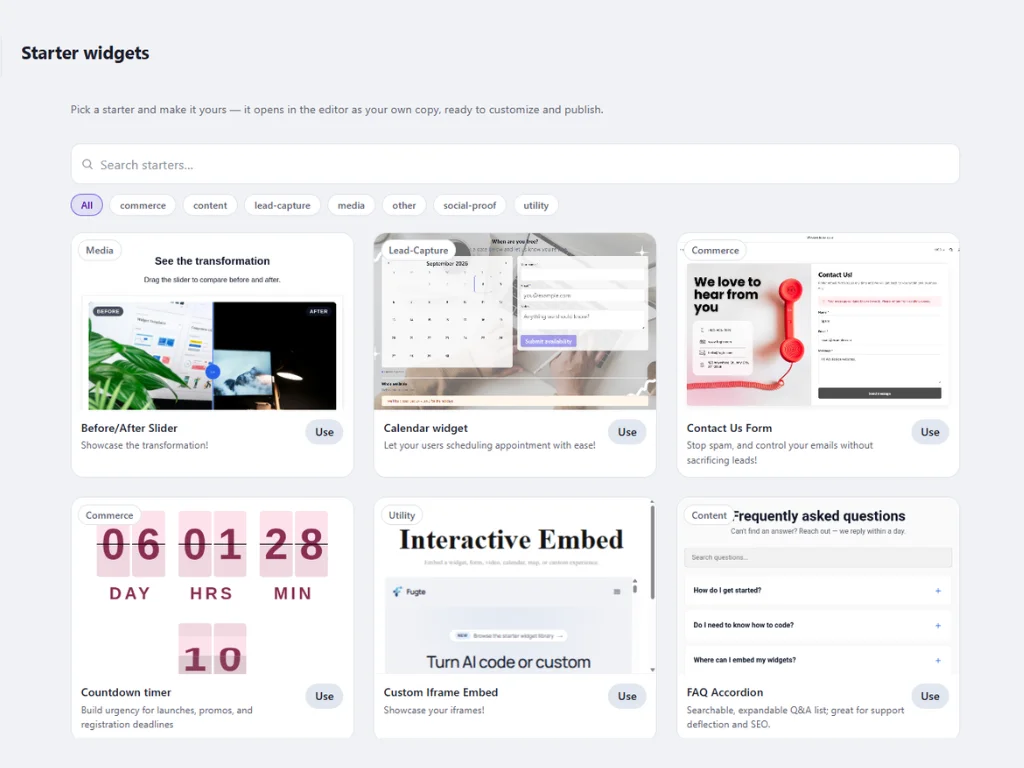
In Fugte, open Starters and choose Use on the Categorized Image Gallery. It opens in the editor as your own copy.
- 02
Change what it has
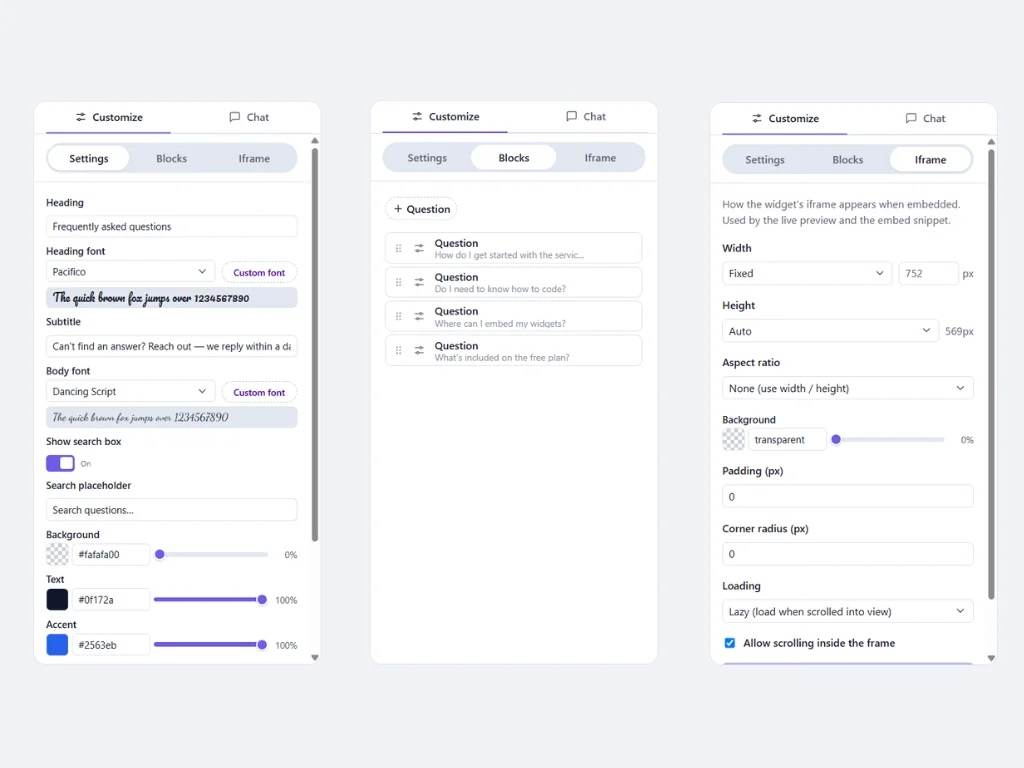
Change whatever the Categorized Image Gallery has on the Settings, Blocks, and Iframe tabs: its wording, colors, and options, the items it repeats, and the size of its frame. Or describe the change on the Chat tab, and the built-in AI makes it for you.
- 03
Publish and copy the link
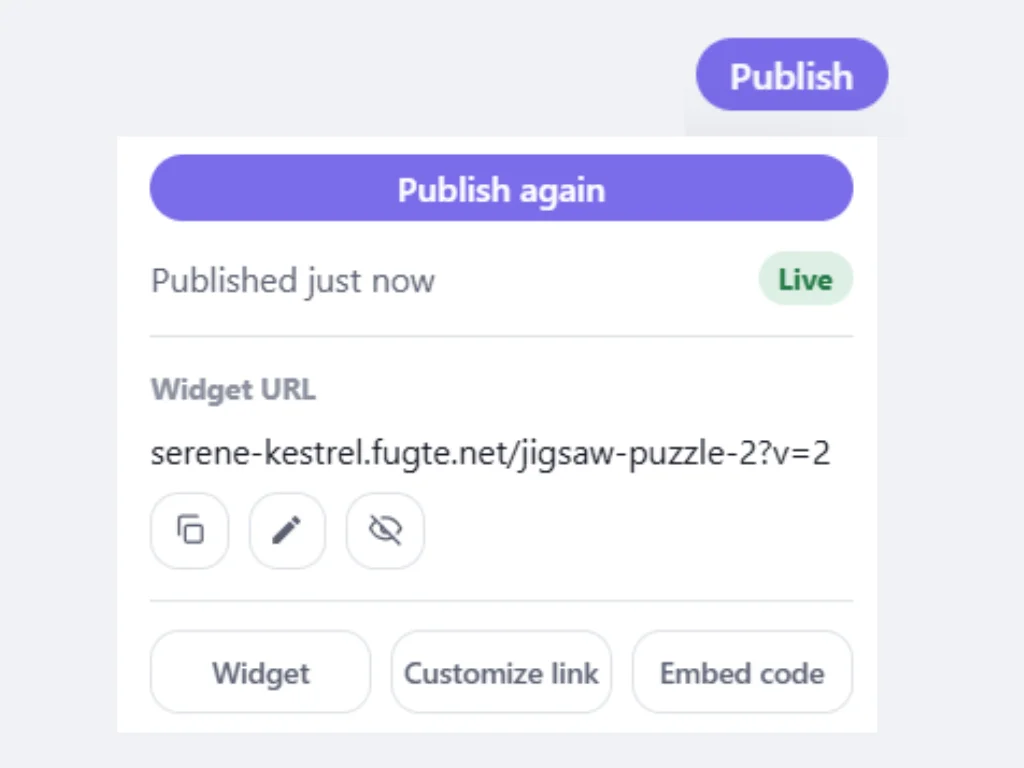
Choose Publish, then copy the Widget URL from the panel. Canva takes this link. It does not accept HTML embed code on any plan.
- 04
Open the Embed app in Canva
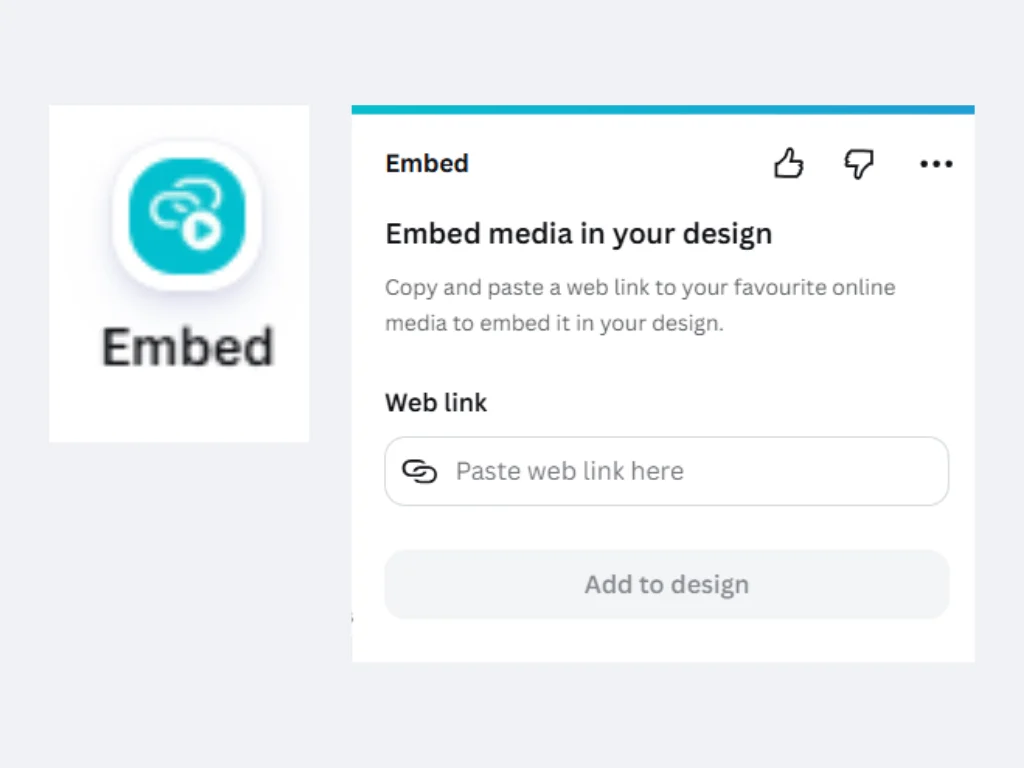
In your Canva website design, open Apps in the left sidebar, search for Embed, and open it.
- 05
Paste the link and add it
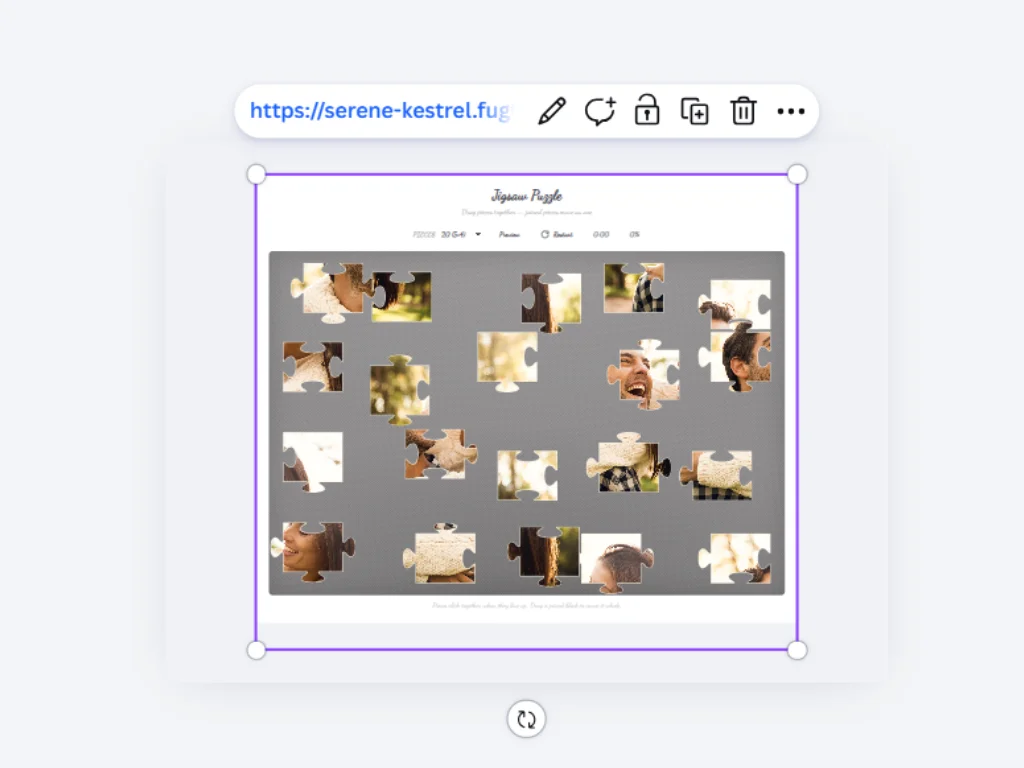
Paste the link into Web link and choose Add to design. The Categorized Image Gallery lands on the page in a box you can drag into place.
- 06
Resize it, try it, and publish
Drag the corners until the whole Categorized Image Gallery shows, then preview the design and try it. Publish the site when it works: the embed reaches the published site only once you publish again.
Another option: the Fugte app in Canva (open Apps and search for Fugte) also lists the Categorized Image Gallery on its Starters tab, and adds it to the page as the same kind of embed. See the Fugte app in Canva.
Good to know
Canva specifics worth planning around.
Canva renders only static, in-page embeds: floating buttons, sticky bars, and popups will not work on Canva sites.
There is no site-wide option: a widget you want on several pages must be embedded on each page individually.
The Embed element is available on free Canva accounts.
The link stays stable, so later edits made in the widget editor appear on the Canva page automatically, no need to reopen the design.
Why Canva takes a link and not code, and what to do when an embed is blank or cut off: How to Add HTML to Canva.
This widget
What the Categorized Image Gallery needs from the embed.
The section above applies to anything you put on a Canva website. This part is specific to the Categorized Image Gallery.
Ideas
Where the Categorized Image Gallery fits.
Portfolios
Categorized image gallery with modal preview and fast filtering.
Showcases
Categorized image gallery with modal preview and fast filtering.
Visual pages
Categorized image gallery with modal preview and fast filtering.
FAQ
Common questions.
Can I paste HTML or iframe code into Canva instead?
No. Canva websites do not support raw HTML, JavaScript, or iframe embeds on any plan. Hosting the widget elsewhere and embedding it by link is the supported route.
Is there a Fugte app in Canva?
Yes, as another way to add a widget. In the Canva editor, open Apps and search for Fugte. The app adds ready-made starters, widgets from your Fugte account, and code you paste in, each as the same kind of embed a pasted link makes.
Some guides say to use an HTML block in Canva. Where is it?
Canva websites do not have one. Steps that mention an HTML or code block, a code module, or an HTML button in the text editor describe other website builders. In Canva, the element that shows outside content is Embed, and it takes a link.
What about Canva's Import HTML option?
It is for reworking a page inside Canva: the file comes in as a single Code block that Canva's design tools do not work inside. To put the Categorized Image Gallery on your site, paste its link into the Embed app.
Will the Categorized Image Gallery stay interactive after the Canva site is published?
Yes. The Categorized Image Gallery loads live on the published site, on desktop and mobile, and visitors can interact with it without any account.
Does this need a paid Canva plan?
No. Canva's Embed element works on free accounts, and Fugte has a free plan, so you can test the full workflow at no cost.
More guides
Same widget, other platforms.
Add a Categorized Image Gallery to a Notion page
Add a Categorized Image Gallery to any Notion page or Notion Site with the /embed block. Hosted, interactive, works on free Notion plans, no code.
Add a Categorized Image Gallery to a Shopify store
Add a Categorized Image Gallery to your Shopify store without installing an app or editing theme code: paste one hosted embed into a Custom Liquid section or page.
Add a Categorized Image Gallery to a WordPress site
Add a Categorized Image Gallery to WordPress with a Custom HTML block, no plugin required. Works with the block editor, classic editor, and page builders like Elementor.
Add a Categorized Image Gallery to a Webflow site
Add a Categorized Image Gallery to a Webflow site with the Embed element: one hosted snippet, editable later without republishing the site.
Related widgets
More media widgets for Canva.
Add a Before and After Slider to a Canva website
A slider visitors drag to compare two photos, on your website or your Canva page.
Add a Hover To Reveal to a Canva website
Create a hover section that reveals what's behind it.
Add an Image marquee to a Canva website
Show trusted client and partner logos in a seamless, infinite horizontal scrolling track.
Try it
Put a Categorized Image Gallery on your Canva website today.
Start free, customize the Categorized Image Gallery without code, and embed it with one link. Free widgets show a small Fugte badge, which you can remove from this one for $9.99 once when you publish, with no subscription.